TIP: Upcoming Widget
NOTE: This example requires OS 27 and Drafts v54 or greater, and Drafts Pro.
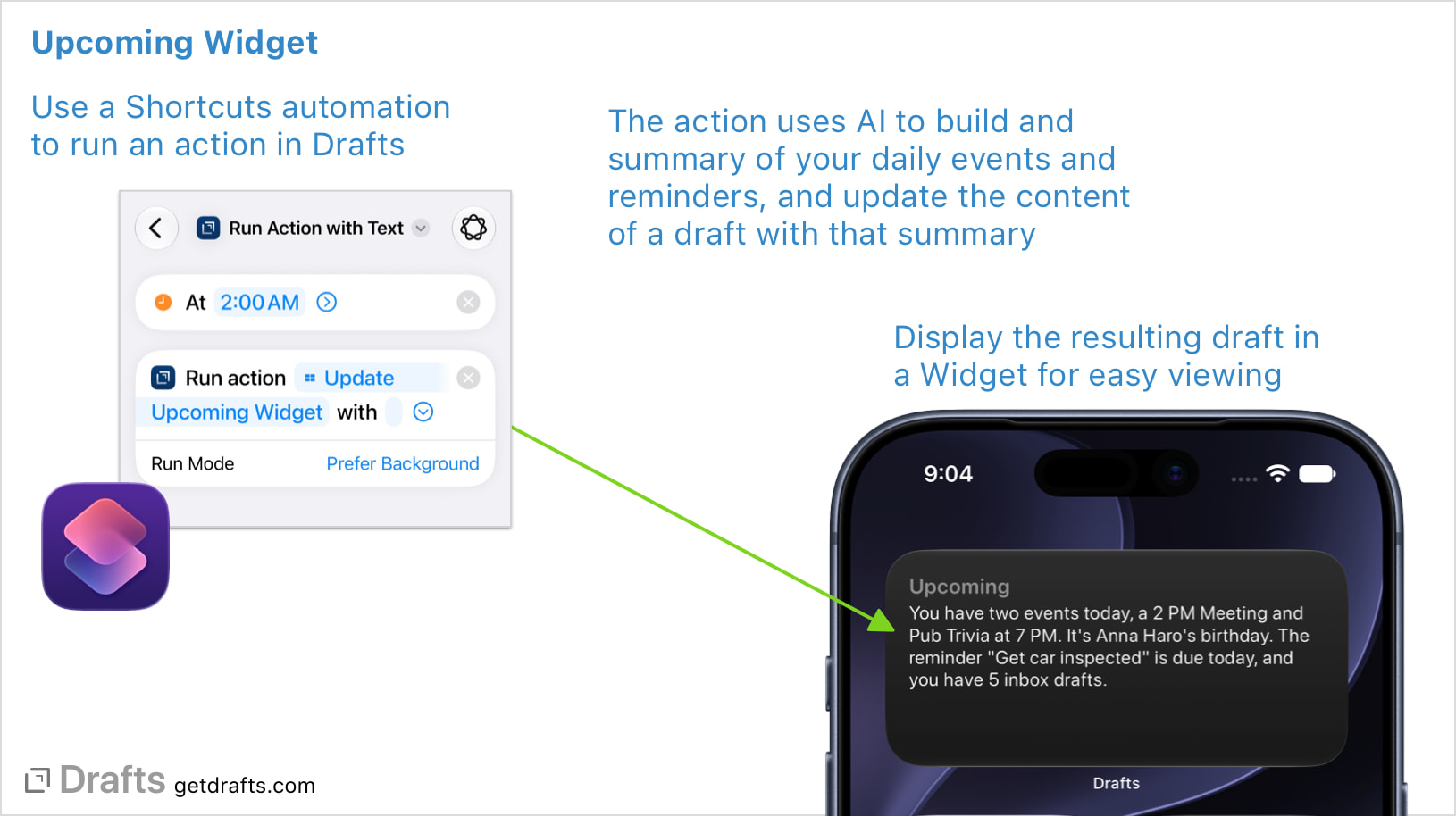
This tip covers how to set up a Home Screen widget that updates daily with new content generated by an AI prompt. In the example, we’ll generate a summary of your daily calendar events, reminders, and status of your Drafts inbox.
This tip demonstrates the use of Foundation Model scripting, Shortcuts automations, and widget configuration, and can easily be modified to use different prompts and generate different sorts of content – like an inspirational quote or similar.
1. Configure “Update Upcoming Widget” Action
To get started, install the example action. Follow the “Install” link on the page below:
This action does the following:
- Looks for a draft with the tag “widget/upcoming” - if one does not exist, it will create it. If you change the tag, use a unique tag reserved for this draft.
- Runs an AI prompt to generate new content for the draft, and updates the draft with that text.
This action has configurable values to modify the tag and prompt, as well as the model used. You can select “configure” in the action’s contextual menu in the action list to modify those values. If you want to make changes, you can do so now or later to modify the action’s behavior.
By default, the action uses the gptTerra (ChatGPT Terra) model. If you have not used the Chat Console with an OpenAI model before, you will need to do that to configure an API key for this to work out of the box. If you are in a region with access to Apple’s Private Cloud Compute, you can configure this model value to pcc to use it. Learn about the available models in the console documentation. I do not recommend using the on-device model for this application, as it is not sophisticated enough to get good results for the example prompt, but it might suit some applications.
Run the “Update Upcoming Widget” Action
Run the action you just installed at least once. You should find a new draft with the title “Upcoming”, and the tag “widget/upcoming” in your inbox. Open it and take a look at what was generated.
If you wish, you can move this draft to the archive so it doesn’t clutter your inbox.
If you have not previously used Drafts with Reminders and Calendar information, you will have been prompted to grant those permissions. We’ll run this action in the background later, so it’s important to run it now and grant those permissions.
Now you have a draft of your daily summary; let’s add a widget to display it next.
Configure the Widget
Return to your Home Screen. Tap and hold to go into Home Screen configuration mode, then select “Add Widget” from the menu at top (If you need a primer on adding widgets, see Apple’s support site)
Find Drafts in the Widget selection screen and choose to add a “Single Draft” widget type. Tap on the new widget to edit its configuration. The first item is the draft to display in the widget. Tap this and find and select the “Upcoming” draft created when we ran the action in the previous step. You can also adjust widget display options, such as the theme, now or later.
Now you have a widget displaying the “Upcoming” summary! Now we just need to hook up a Shortcuts automation to make it update daily.
Create Shortcuts Automation
We’ve now set up Drafts to create and update the content of a daily summary widget. You can run the action we installed manually at any time, but we want it to run automatically overnight so we wake up with a fresh summary of our day. We’ll do that with an automation in the Shortcuts app.
- Open Shortcuts
- Select the “Automations” tab
- Create a new “Time of Day” automation, and assign it a time to run overnight. I have mine set to 2 AM, but any time will do.
- For the action, navigate to Drafts in the available action list, and select the “Run Action with Text” action.
- Once added, tap the “Action” parameter and search for and select the “Update Upcoming Widget” action we installed above.
- Expand the parameters of the shortcut action, and set “Run Mode” to “Prefers Background”.
- No value is needed for the “Text”, as it will be ignored.
You’ve now set up an automation to run every night that will prompt for a new summary of your day’s activities and update the draft displayed in your widget.
What’s Next?
Now that you have set up your daily summary widget, you may want to modify it to generate different information. This can be done without scripting or complicated code; just configure the action and rewrite the prompt. Perhaps you would rather it just generate a summary of what’s in your Drafts inbox, for example.
If you’d like to do more advanced AI scripting, edit the action and review the techniques used in the action’s script step, and review the ModelSession object scripting documentation.