Do you find yourself processing text captured in Drafts with the same actions frequently? If so, this example shortcut might be of use. It demonstrates how to set up an automation to monitor your Drafts inbox and automatically process any items with a specific tag. As written, the shortcut does the following:
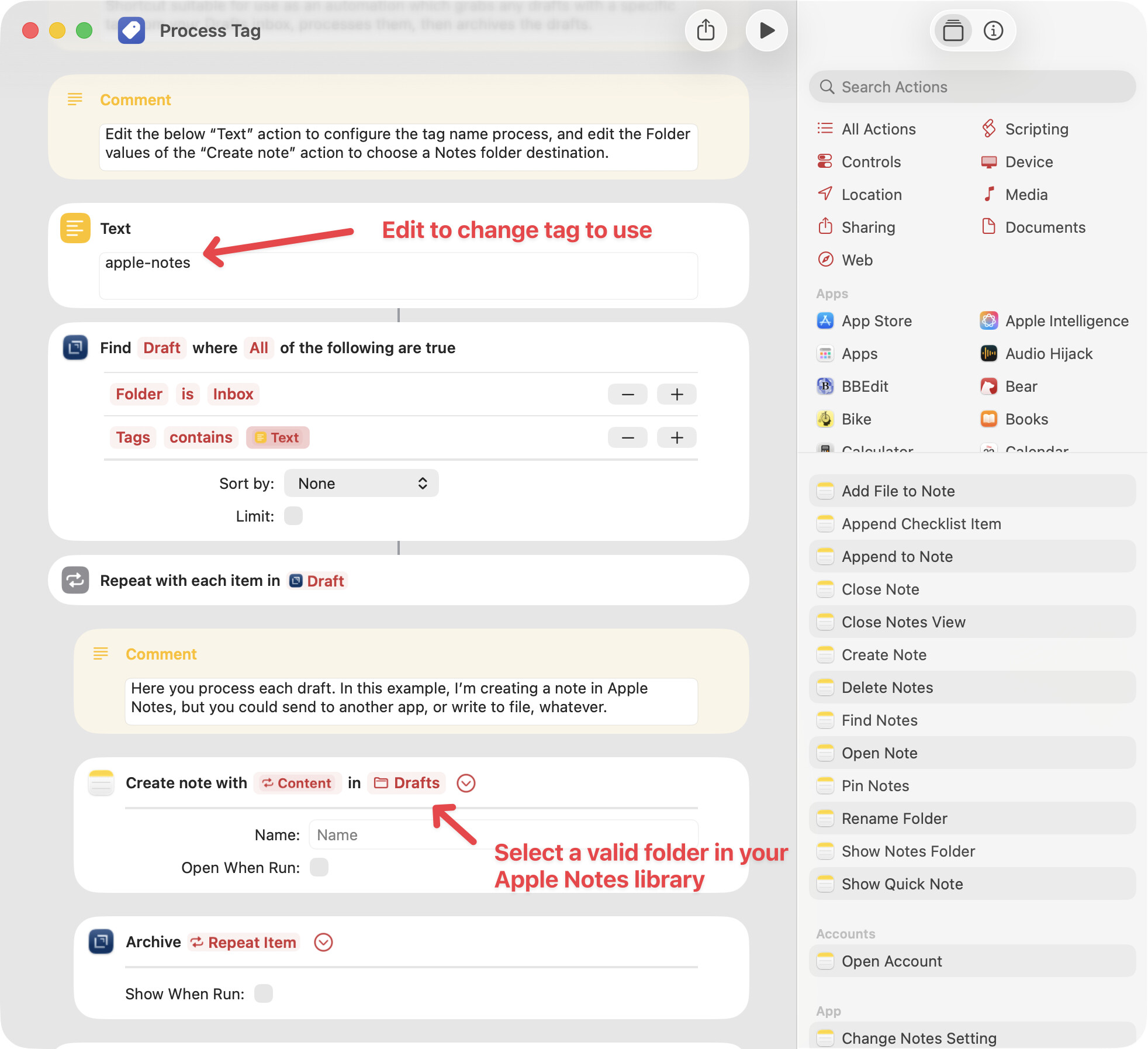
- Finds any drafts in your inbox with a specific tag - by default, it looks for the tag “apple-notes”, but that can be edited in the first action of the shortcut.
- Loops over each draft it finds, and creates a note in Apple Notes with the content of the draft.
- Archives each draft.
This basic example can easily be modified to send that content to other apps or write it to a file if Apple Notes is not your thing. The shortcut runs without interaction, so it is suitable for triggering via Shortcuts automations at specific times. If set up as an automation, as you go through your day, anything you capture in Drafts that you want to end up in Apple Notes, just assign the “apple-notes” tag, and the automation will pick that up and process it without further interaction
Setup
- Install the example “Process Tag” shortcut
- Edit the Shortcut and make two changes:
- If desired, change the “Text” action to have the name of the tag you wish the action to operate on. By default, this is set to “apple-notes”
- In the “Create note” action further down, select a folder in your Apple Notes where you want the notes to be created.
Test The Shortcut
After configuring the action, test it:
- Go to Drafts and create at least one draft and assign it the “apple-notes” tag.
- Run the shortcut in the Shortcuts app.
You should see the following:
- The draft(s) you created with the “apple-notes” tag will be moved to the archive in Drafts.
- A new note for each draft will be created in the folder you selected in Apple Notes.
Setup Automation(s)
In Shortcuts, go to the “Automations” tab, and configure an automation to run this shortcut periodically. The Shortcuts app can only setup daily intervals, but if you need to run more frequently, you can setup mulitple automations to run the same shortcut.
On Mac, there are also many automation tools that can ease configuration of periodic Shortcuts - like Hazel, Keyboard Maestro, BetterTouchTool, or cron.
What’s Next
In practice, not many of you likely want to use this shortcut as-is. It’s meant as an example, but can easily be modified to process the drafts in other ways by replacing the “Create Note” action with other actions provided by apps you want to work with. You can even setup multiple versions of this to process different tags to different destinations. Hope it gets you thinking!