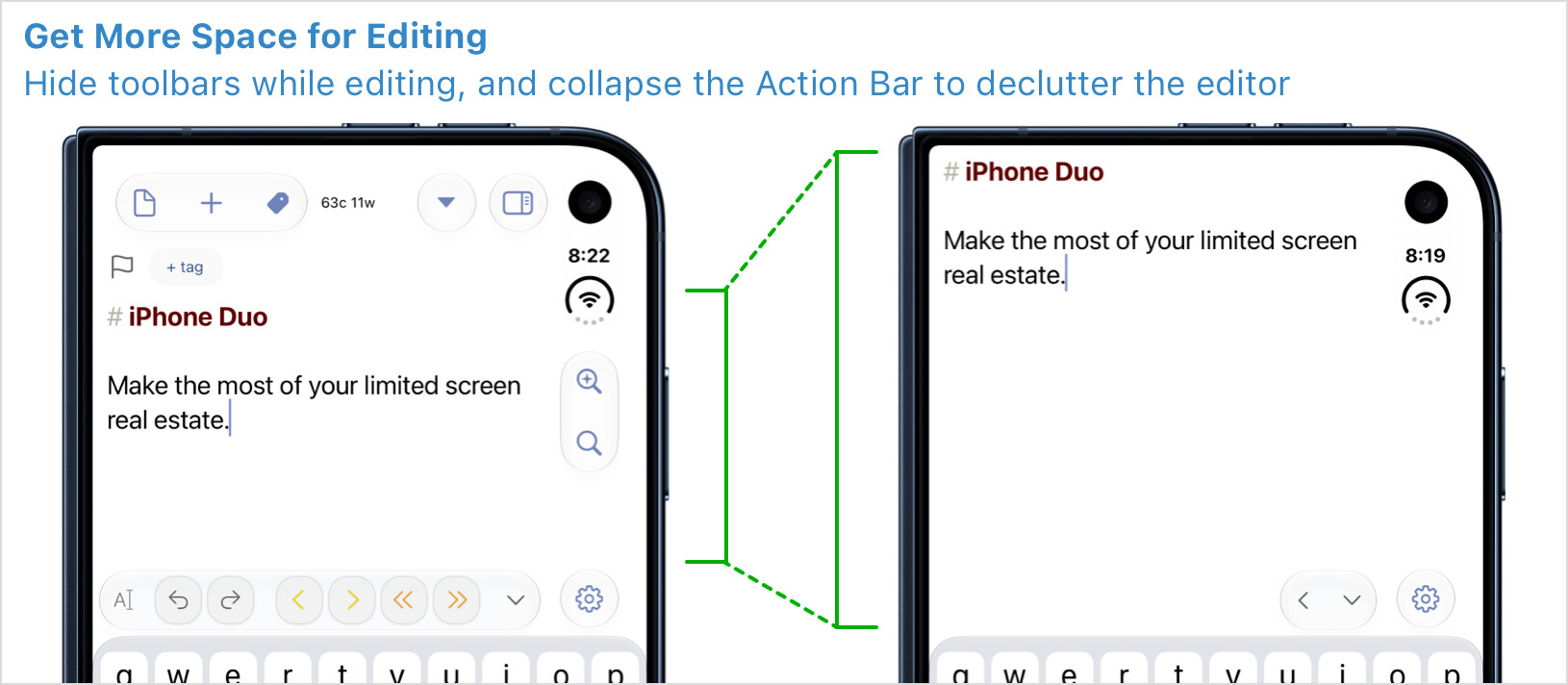
Some phones [gives iPhone Duo side-eye  ] have limited vertical space for your content, especially when the on-screen keyboard is visible. If you have one of these phones, or just prefer a less cluttered editing experience, Drafts has a few handy display options that can help!
On the iPhone Duo, hiding top toolbars while editing and collapsing the action bar can give you as much as 75% more vertical space for your text.
Hide Toolbars
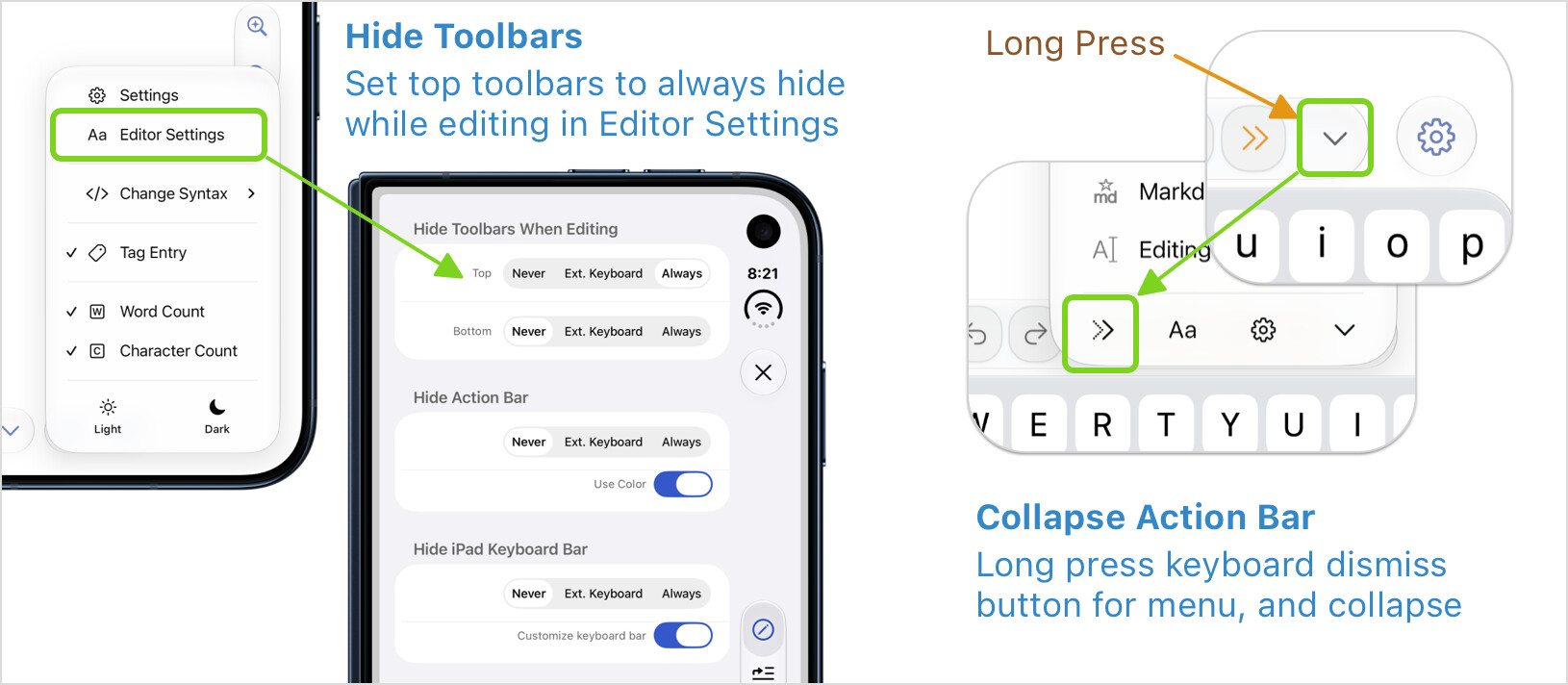
Drafts can hide either the top or bottom toolbars automatically when the editor is focused. To enable these options, visit Editor Settings and scroll down to the “Hide Toolbars While Editing” section.
Don’t worry, as soon as you dismiss the on-screen keyboard, the toolbar will slide back into view so all its functionality is still easy to access.
Collapse Action Bar
Many of you use the actions in the action bar regularly. It can be hidden completely if you do not, but you can also tuck it away by collapsing it. I posted a separate tip with a video on this feature if you’d like more detail, but simply put - long-press the keyboard dismissal down arrow in the Action Bar, and select the collapse option.
Bonus - Hide Status Bar
Want to further remove distractions while in Drafts? Editor Settings also has an option to hide the status bar. This removes the time/network status indicators from the interface while Drafts is the active apps. This does not gain you and space, but does remove those distractions while you are trying to focus on writing.