New note from specific template in one click?

Sorry if this is obvious but I’d like a clickable link that creates a new note from a specific template, not passing any text to it, and I’m stumped.

My first idea was to use the url scheme but I didn’t see any way to specify the template. - URL Schemes | Drafts User Guide

Next, I tried a Shortcut but the Process Template action requires a draft. I could use Run Action with Text and use New Draft from Template but I have a lot of templates and just want one specific template.

I’m not great at modifying Actions but assume that’s my best course since I could run it through the url scheme.

Am I missing something? Much thanks!

How about creating an action with the create draft step set up to create your new draft in the way tou want? Then use a hyperlink for the Drafts URL scheme to trigger the action.

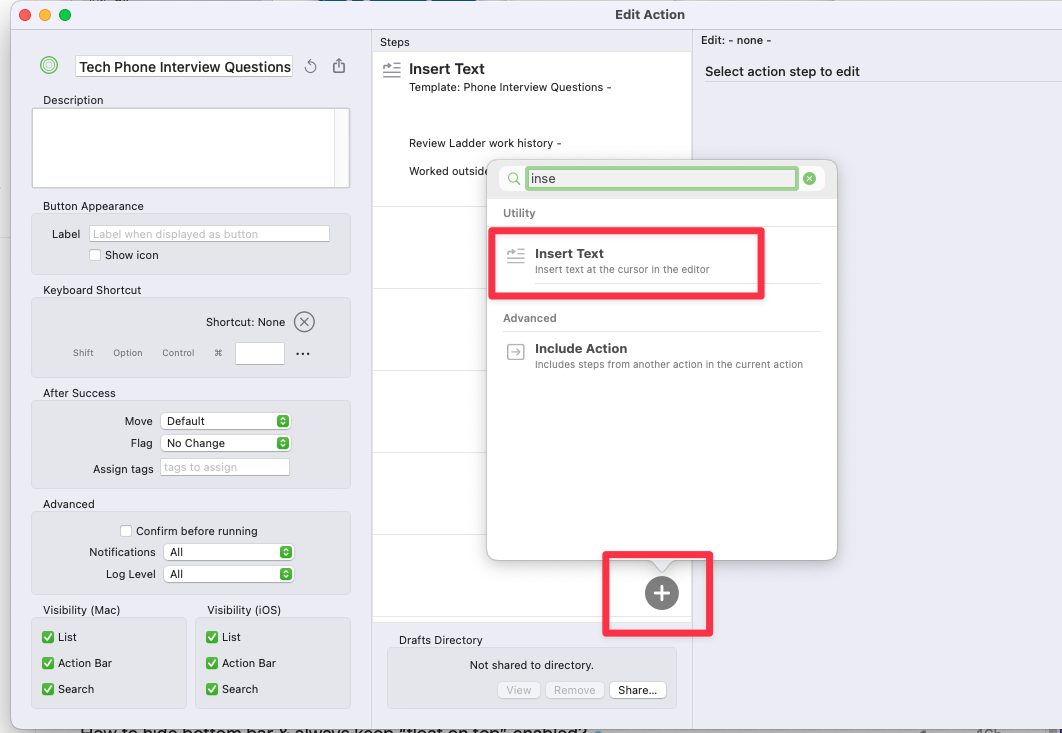
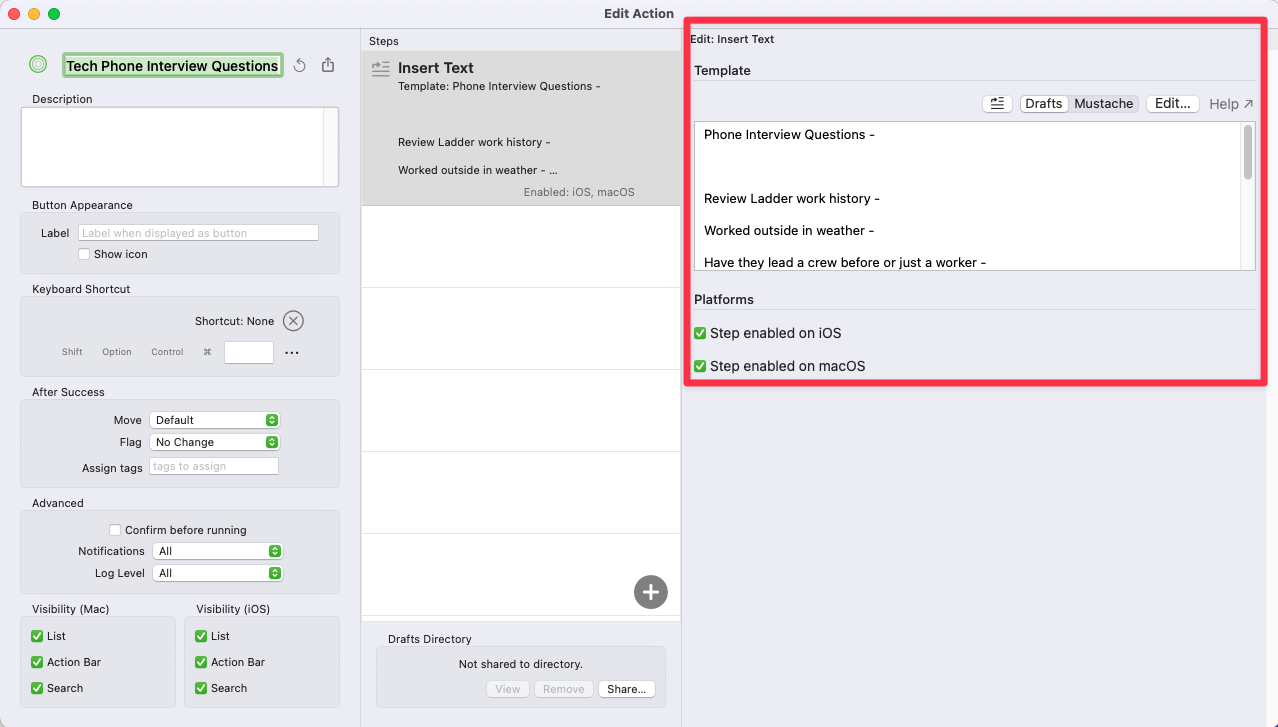
I use the Insert Text action to create the blank template and not rely on an existing template

Just copy/paste your template into the right side empty box and save

I am a pro subscriber, so your options maybe different

I just search for the template to use as I have over 20 of these for work to insert the same boring text template…..

Note the OP wants to create a new draft from a template and trigger from a hyperlink. Text insertion action steps on their own do not create a new draft (hence my suggestion for the create draft step above), and you still would need the URL scheme action link format to trigger it as a hyperlink.

Just using what you suggest could end up inserting th template at your current cursor position in an existing drafts when triggered.

I just updated the “New Draft with Template” example action to support configuration of a default template.

Do the following:

  • Re-install the action from the link above. Choose to replace your existing version when prompted in Drafts.
  • In the contextual menu for the action in the list (right-click on Mac, long-press on iOS), duplicate the “New Draft from Template” action.
  • In the contextual menu for the new duplicate, select “Configure…”, and enter the exact title of one of your existing templates.
  • Run the action. If it finds a template that matches the configured title, it will skip the prompt and use that template directly.

You will probably also want to edit that duplicate and rename it to match the template your configured.

2 Likes

Thank you! That works beautifully and I hope it helps others out. I find it convenient to keep templates outside of scripts for easier updating. Every little bit helps with those routine tasks. You’re the best!
Thank you for this. I use a specific template every day and this makes it even easier.