In iCloud the Drafts app takes up 3GB:
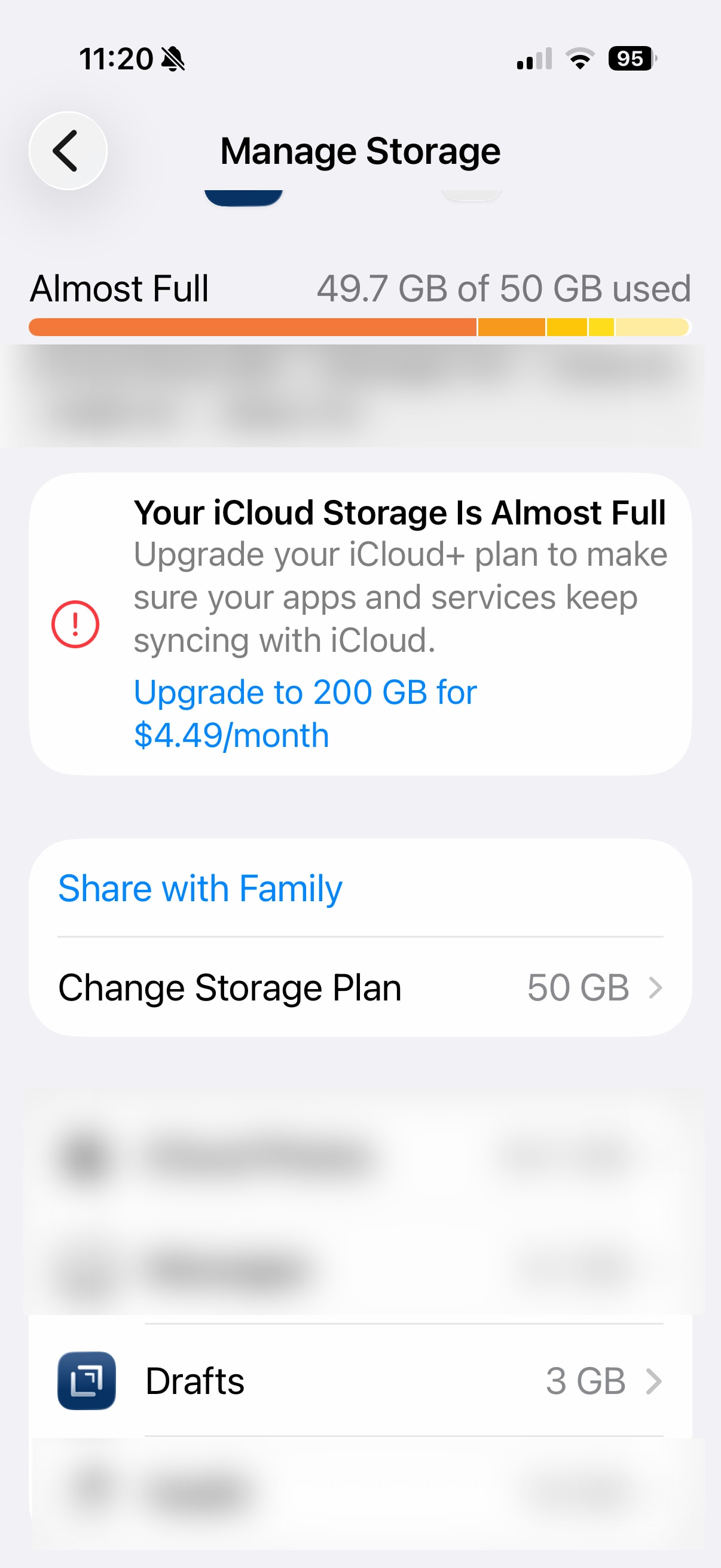
That feels pretty excessive to me. I have approx. 6000 text drafts – this can never add up to 3000MB!
How can I reduce this, but – of course – keep my texts?
Many thanks for any help!
In iCloud the Drafts app takes up 3GB:
That feels pretty excessive to me. I have approx. 6000 text drafts – this can never add up to 3000MB!
How can I reduce this, but – of course – keep my texts?
Many thanks for any help!
What does it say if you click on “3 GB”" there?
At present in the place where your image shows 3GB, my Settings page shows 440.2MB (down somehow from about 900MB a few days ago). But if I click on 440.2MB, I get another screen saying “You have 133 MB of Drafts data securely stored in iCloud and available to sync with devices.”
I don’t understand the discrepancy between 440 and 133MB, but it does cast doubt on the larger figure. Perhaps 3GB for you is not accurate.
Also, have you tried clearing old versions of drafts? Look in the Info menu for individual drafts, or under Maintenance in Settings. That can save significant space.
First place to start is to look at what you have in the “Drafts” folder in iCloud Drive. Those files contribute to that total, but are not part of your actual draft library.
For example, the automatic backup feature of Drafts (in Settings) could be enabled but with it set to keep only a certain number of back ups, and they are building up - or you just unintentionally directed some large files there.
Thanks for chiming in!
Backups are enabled and set to keep “All”. I will change this to “Keep last 30”.
Three questions:
~/Library/Mobile\ Documents/iCloud~com~agiletortoise~Drafts5/? (Despite the fact that my Drafts app has a version like 47?)Thanks, makes all sense.
Will do it all via Drafts app and Finder then.
All worked well.
After setting the bAckuops to “Keep 30” the Drafts folder size went down to 100-200MB. That’s more reasonable.
Thank you for all help!
It is criminal for apple to sell anyone a 50gb iPhone without expandable storage, honestly.