The HTML that is being generated by processed Markdown for example is just HTML. Therefore the styling is all contained within that HTML. CSS is indeed what you want to look at, and searching for a beginner’s CSS tutorial in your favourite search engine or on a platform like YouTube will get you started. Note, you will need to understand HTML to make CSS work for you because the CSS is effectively saying make this type/component of HTML display like this, and that type/component of HTML display like that. You can set the fonts, colours, layout, and all that lovely stuff.
W3C Schools has HTML and CSS at the top of its home page and their pages usually rank highly when you are searching for learning about HTML and CSS.
Do make sure when you refer to actions that you link to the action. There can be actions with duplicate names … but I am assuming that “Copy to Rich Text” actually refers to the “Copy as Rich Text” action that is included in the default Markdown action group by AgileTortoise.
To apply your CSS, you can either modify the action (I would copy the action to a new action group and modify it there - you will need to be a Pro subscriber to create your own custom actions), or, since all HTML is also valid Markdown, you could embed the style directly in your draft.
Normally you include your styling at the top, but for simple cases you can certainly get away with it being added at the bottom of the draft. You also have to make sure you format it so that the Markdown processor does not interpret double newlines as paragraphs, and indents as pre-formatted text - hence why the formatting below is poor. But, if we start with a simple Markdown formatted draft and added an HTML style block with some CSS styling to the bottom of a draft:
# This is a level 1 heading
Lorem ipsum dolor sit amet, consectetur adipiscing elit. Phasellus eget neque nec ipsum ultrices ultricies et a tellus. Quisque molestie leo purus, vitae imperdiet orci. Pellentesque mauris turpis, eleifend at lobortis eget, lacinia vitae lectus. Praesent nec elit nunc, nec molestie nisl. Suspendisse facilisis mi vitae nisi sollicitudin ut imperdiet elit rhoncus.
## This is a level 2 heading
Etiam interdum cursus purus, ut pharetra enim adipiscing faucibus. Nulla malesuada aliquam sollicitudin. Integer imperdiet accumsan iaculis. Quisque fermentum, lorem condimentum convallis auctor, erat sapien egestas sem, et rutrum diam nunc eu mauris.
## This is a level 2 heading
Etiam quis urna et velit euismod mollis. Morbi congue orci eu purus facilisis id hendrerit dui malesuada. Nulla nisi nisl, scelerisque eu euismod faucibus, scelerisque et lectus. Maecenas consectetur tristique justo ut venenatis. Nulla facilisi.
<style>
body
{
font-family: Arial, Helvetica, sans-serif;
font-size: 12pt;
color: dimgray;
}
h1
{
font-size: 16pt;
color: steelblue;
}
h2
{
font-size: 14pt;
color: cadetblue;
}
</style>
This then gets processed to the following HTML:
This is a level 1 heading
Lorem ipsum dolor sit amet, consectetur adipiscing elit. Phasellus eget neque nec ipsum ultrices ultricies et a tellus. Quisque molestie leo purus, vitae imperdiet orci. Pellentesque mauris turpis, eleifend at lobortis eget, lacinia vitae lectus. Praesent nec elit nunc, nec molestie nisl. Suspendisse facilisis mi vitae nisi sollicitudin ut imperdiet elit rhoncus.
This is a level 2 heading
Etiam interdum cursus purus, ut pharetra enim adipiscing faucibus. Nulla malesuada aliquam sollicitudin. Integer imperdiet accumsan iaculis. Quisque fermentum, lorem condimentum convallis auctor, erat sapien egestas sem, et rutrum diam nunc eu mauris.
This is a level 2 heading
Etiam quis urna et velit euismod mollis. Morbi congue orci eu purus facilisis id hendrerit dui malesuada. Nulla nisi nisl, scelerisque eu euismod faucibus, scelerisque et lectus. Maecenas consectetur tristique justo ut venenatis. Nulla facilisi.
body { font-family: Arial, Helvetica, sans-serif; font-size: 12pt; color: dimgray; } h1 { font-size: 16pt; color: steelblue; } h2 { font-size: 14pt; color: cadetblue; }And when you copy that as rich text to the clipboard and paste it into say an RTF document in TextEdit, the result looks like this:

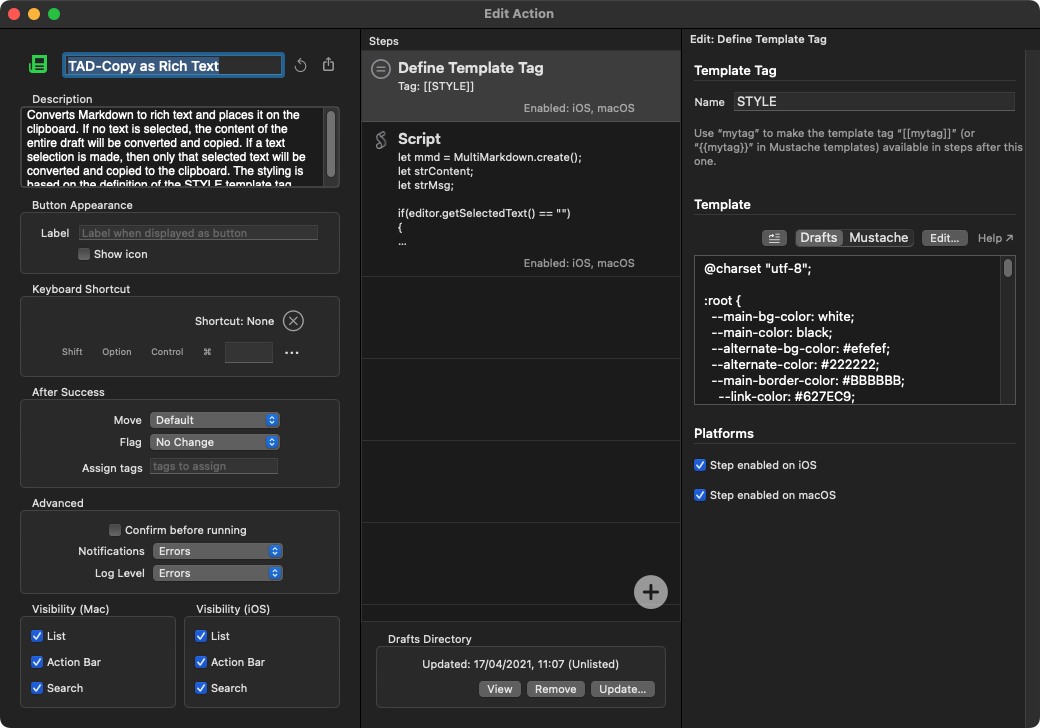
Now you don’t have to add this every time if you create your own action. You could hard code it into the action, or you could do like I did in the "TAD-Copy As Rich Text” and keep it in a tag definition in the action to make it a little easier to maintain.
One additional point to note is that you mention email as one of the places you are copying to. There have been several discussions in the past on challenges with how apps interpret and transform rich text. I’ve included a couple of links below so you know what sorts of challenges people have bumped into in the past. They cannot always be worked around as e-mail clients can be rather opinionated on the formatting front.
In the CSS I used above, I set the base size as 12 pt for the body text. I set the H1 as 16 pt and the H2 as 14 pt.
In HTML parlance, a title is part of the page data and is not part of the page content so it does not have a font size.
In Drafts, the title is the first line of the draft. When converted from Markdown to HTML it would be converted as body text … unless you prefix it with some octothorps or underline it, in which case it is going to become the heading level specified by your Markdown syntax, and converted accordingly when transformed into HTML. So the title is simply a range within the draft, not a particular type of content.
That being said, you could use HTML syntax on that first line and specify a class for the heading or content that you could then style differently … but I don’t want to add confusion. Best to start out with the very basics on the CSS side first.
Notes:
- There is also the option for a custom version of the action to apply HTML to the title and process it in much the same way you could move the style block into the action.
- Drafts has provision for external files, and the CSS could be held outside of an action entirely.
You set this via CSS not the processor. The processor is processing a string of text. There are some settings you can specify, but none of them are changing the base font.
In the example I used above I set the font-family for the body text. This is then inherited by the other elements contained in the body. The font-family is just an ordered list of fonts to try. It is good practice to include more than one. I would suggest just taking what I had above and swapping the order to put Helvetica first:
font-family: Helvetica, Arial, sans-serif;
I think that covers all of your points, but Ido follow up if you get stuck.